
Product walkthrough
Edit. Save. Review. Publish.
A guided explanation of the Design Studio Website Builder workflow, with a generated example you can inspect.
Design Studio 1.5.0-rc.5
Follow the current website workflow.
This guide is based on the current supplied plugin. The example below was saved, edited, reopened and published in an isolated WordPress test. It uses fictional demonstration content and is not a live customer campaign.
Enter and edit your offer
In the installed Design Studio, add your product name, audience, headline, benefits and affiliate destination. Choose the connected pages you need. Edit the copy and styling, and use images you are entitled to publish.
Accessible public-URL inspection can suggest information for review. Direct entry remains available. Source suggestions are not a guarantee that a claim is accurate.
Save a project you can reopen
Save your work in the installed builder. Its private project keeps your content and selected pages together. Reopen it to make revisions instead of starting again.
In Website Builder, saving a new project also creates its selected WordPress pages as drafts. The public site is not published by that save action.
Inspect the WordPress drafts
Review the actual page content, desktop and mobile layout, facts, disclosures, links and any bonus instructions. The Website Builder’s preview lets you inspect the saved draft set.
If a page was changed outside the builder, resolve that change before publication. The builder checks that its linked pages are still intact.
Approve publication explicitly
Confirm that you reviewed the current saved version, then use the publication action. The builder checks permissions, required information and the saved page state before publishing the selected pages.
Open the resulting pages on your real site and test the important links. Publishing an offer page does not create an audience or verify a merchant sale.
Export, update and maintain
Export linked HTML pages when using your own static hosting, and keep project backups private. Revisit the saved project when facts or links change.
Saving edits to a published Website Builder project keeps the current published page until you approve the new version. Review again before replacing it.
Other tools have their own controls. Sales Funnels is under Tools → YellYeah Sales Funnels; PitchPush and Publisher have their documented preparation and publication workflows. Follow the guide supplied with the tool you are using.
Existing product screens
Read the interface at its proper proportions.
Open either image for a full-size view. These existing screenshots provide context; the workflow above describes the current Website Builder.

The original 1446 × 1088 screenshot is no longer forced into a wide crop. Open full image ↗

Existing product screenshot. Product details and claims require review. Open full image ↗
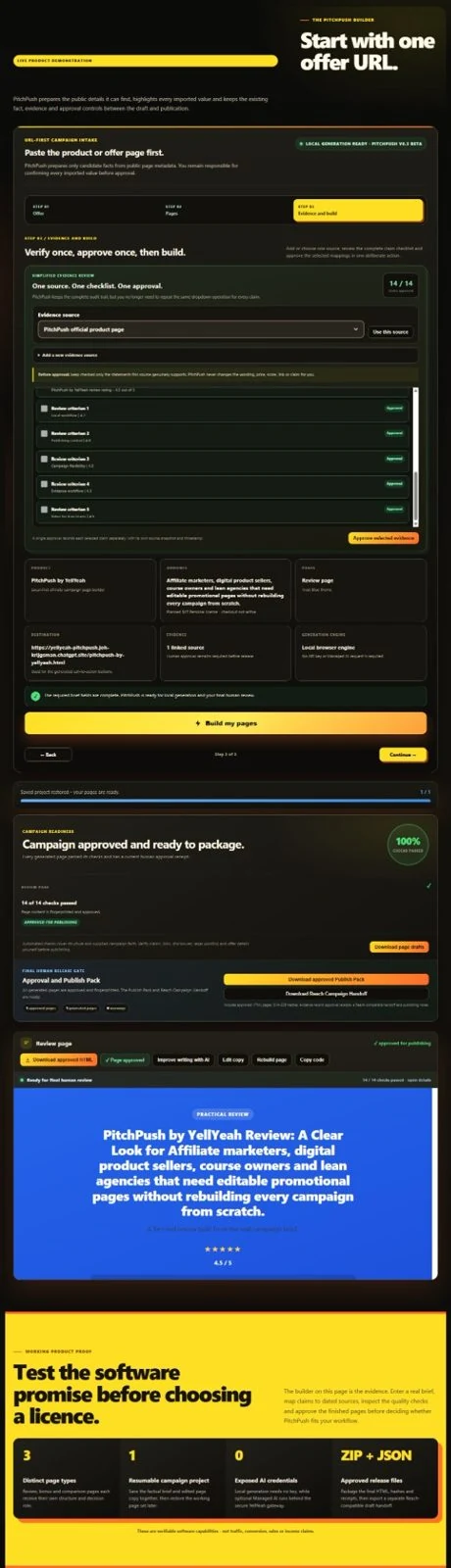
The complete readiness screenshot. Open full image ↗
YouTube loads only after you press play. Open the video on YouTube ↗
Original walkthrough · 3 min 14 sec
See the earlier PitchPush presentation.
This existing video covers the original product presentation. It does not demonstrate every later Design Studio or Sales Funnels feature.
The current guide and generated example above cover the Website Builder save, draft and publication sequence.